

Pipelines and logs
The Pipeline tab shows the CI runs for the review you have open. Drill from a pipeline to its jobs to a full log, search it, and retry what failed without opening the forge.
Open a review from the inbox and press 5 to reach the Pipeline tab. You can also press CtrlP and run the Pipeline command. GitLab pipelines and GitHub Actions workflow runs render the same way, so a failing job looks the same on either forge.
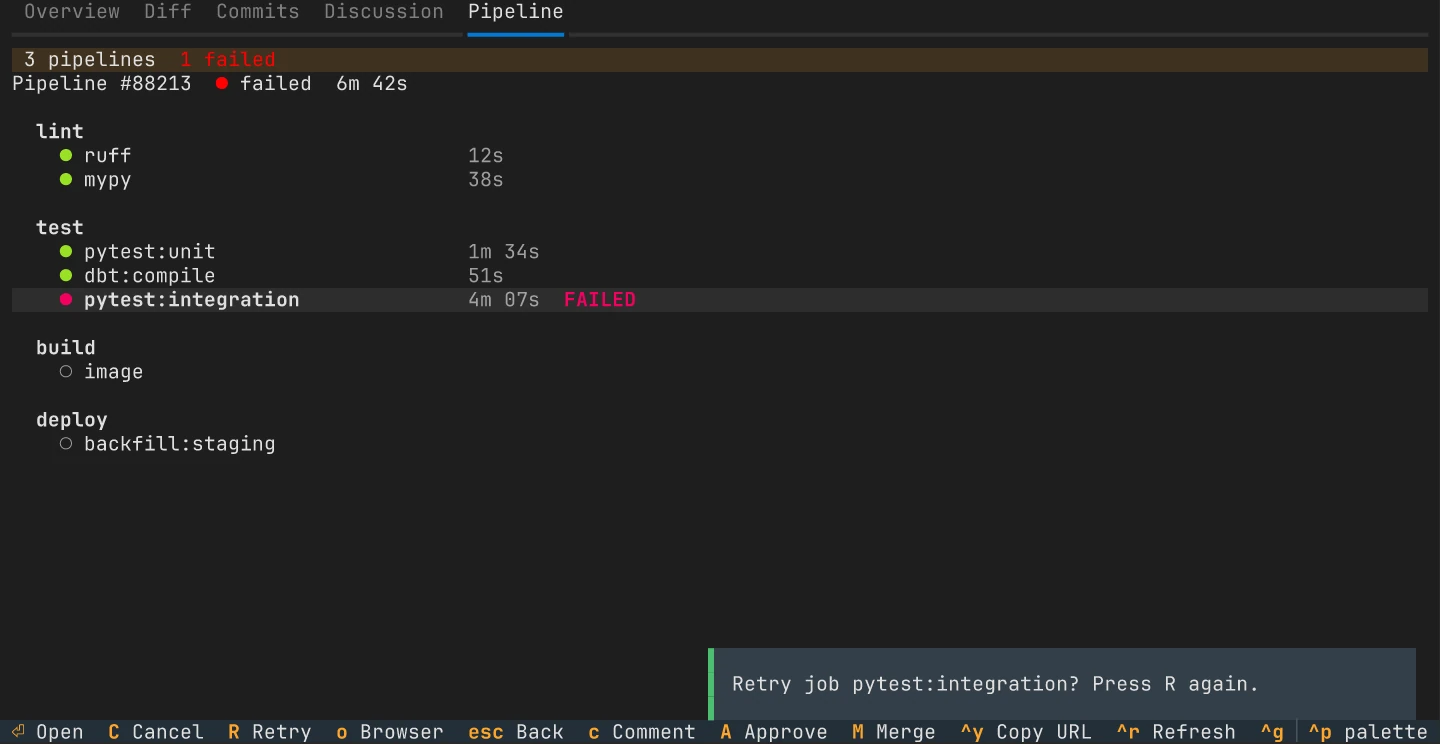
Drill down from pipeline to log
Section titled “Drill down from pipeline to log”The tab has three levels. Move with j and k, go one level deeper with Enter, and come back out with Esc.
Pipeline list
Section titled “Pipeline list”Each pipeline shows a status icon, its ID, when it ran, the short commit SHA, the branch and how long it took. A failed pipeline has a red border and a running one a yellow border.
Job list
Section titled “Job list”Jobs are grouped by stage. Each row shows the job name and how long it ran. A
failed job also carries the word FAILED, so the status never depends on
color alone. Jobs allowed to fail are marked allow failure.
Job log
Section titled “Job log”The log keeps the CI system’s own ANSI colors, with line numbers in the gutter. For very long logs the view keeps the last 50,000 lines. F2 opens the full log.
Search a log
Section titled “Search a log”Press / in a log to search the whole output as you type. The search ignores case. A status line shows the match count, the line number and a preview of the current match, or says when a term has no matches.
n and ShiftN walk forward and back, wrapping at either end. Enter keeps the search and returns to the log. Esc closes it and puts you back where you were reading. The next Esc drills out a level.
Retry and cancel
Section titled “Retry and cancel”Actions that change the forge ask for a second press of the same key. The first
press shows a prompt such as Retry job pytest:integration? Press R again.
| Key | Action | Confirm |
|---|---|---|
| ShiftR | Retry a failed or canceled pipeline or job | Twice |
| ShiftC | Cancel a running or pending pipeline or job | Twice |
| o | Open the pipeline or job page in your browser | None |
| F2 | Open the job log in your editor | None |
Retrying a pipeline reruns the jobs that did not pass, not the whole pipeline. GitHub cannot cancel a single job, so on GitHub cancel the whole workflow run from the pipeline list.
Open a log in your editor
Section titled “Open a log in your editor”F2 hands the log to your editor, which helps with long logs or with
comparing two runs side by side. tongs starts the command set in the
[editor] table, then $VISUAL, then
$EDITOR, and otherwise the first of nvim, vim, vi, nano or less it
finds on your PATH:
# Open job logs and long comments in VS Codeexport VISUAL="code --wait"tongs writes the log to a private temporary file, waits for the editor to
exit, then deletes the file. external_editor_enabled = false in the same
table turns F2 off.
Every key on this page is also listed in the keybindings reference.